

A guest steps up to the mirror and doesn’t know where to look. The screen flickers with the camera feed, the glass shows their reflection, and the photo is taken just as they turn their head. That’s what happens when a mirror booth is set up like an ordinary photo booth. Mirror booth software has to guide guests differently.
A mirror booth is a mirror with a touchscreen, a camera and a printer. The screen is usually in portrait orientation and mounted low, and guests walk up standing, often in small groups. So you need to prepare three things: what guests see instead of a live view, where the buttons are and what they hear.
Fotillo supports the mirror booth as one of the 8 devices in the configurator. You can set up animations, buttons and backgrounds without a programmer: they’re files in the program folder and a few settings in the F4 menu. You can test everything in DEMO mode before you pay.
How mirror booth software differs from photo booth software
In a photo booth, guests look at the screen and see a live view from the camera. In a mirror booth, they see their own reflection, so a live view isn’t needed and actually gets in the way. Two images at once are distracting.
That’s why Fotillo plays animations with sound instead of a live view. First an invitation to pose and a countdown, then a short animation at the moment the photo is taken. The second one hides the shutter and the time it takes the shot to travel from the camera to the computer. Guests have something to watch right to the end.
The second difference is button height. On a large portrait screen, the bottom of the layout ends up at knee height for a standing guest. Mirror booth software has a separate setting that moves the buttons higher, into a comfortable zone.
The third difference is the features. In the configurator, the mirror booth comes with a fixed set: camera, printer, animations. Payments aren’t included, so a mirror booth works best where the organiser pays for guests’ prints: at weddings, corporate events and 18th birthday parties.
Step 1: configure your version and test it in DEMO
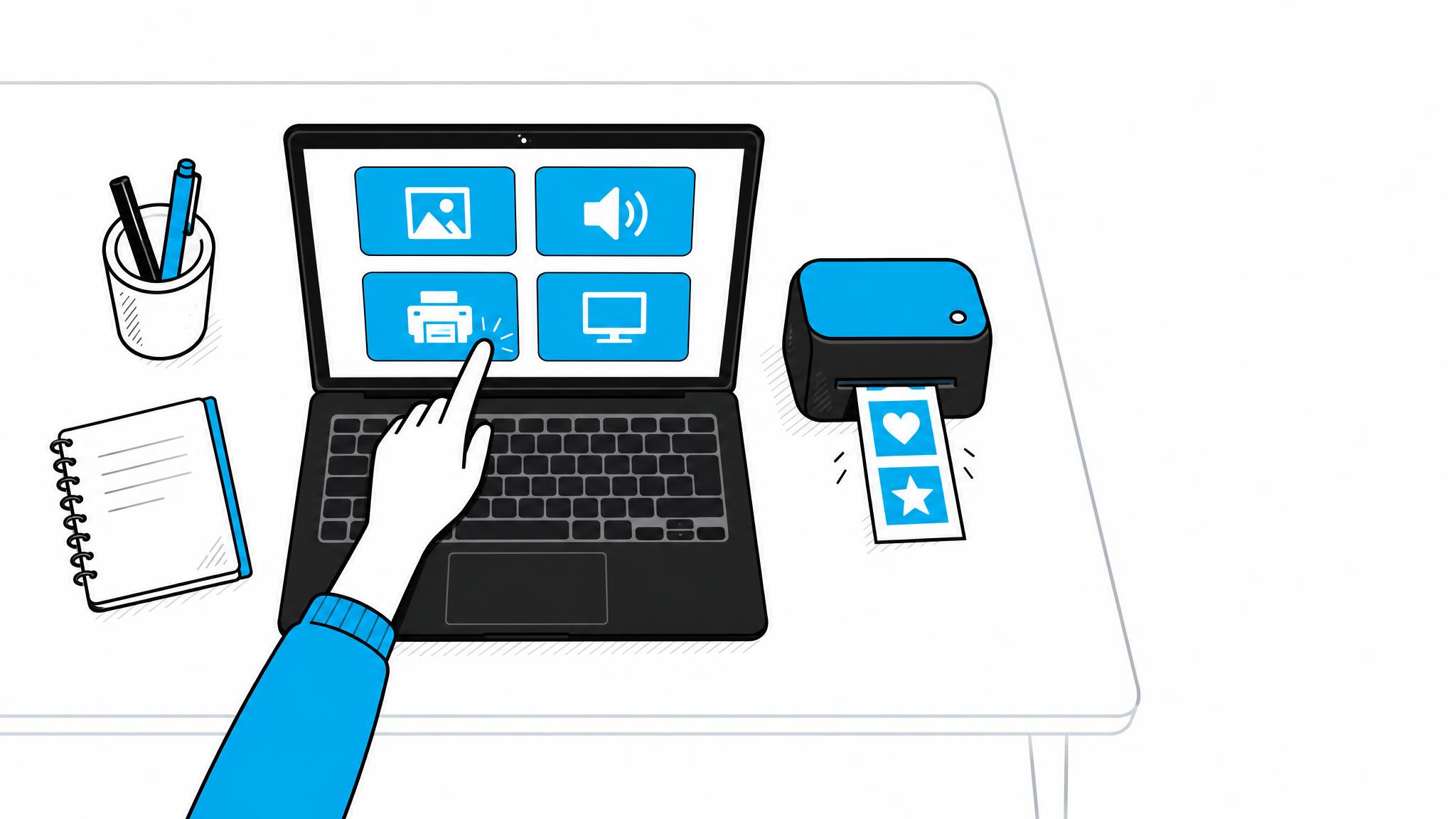
You start in the configurator at builder.fotillo.com. Choose the Mirror booth device, and the Animations / Ads feature is already included. It handles the animations that replace the live view and the animated screen backgrounds. It requires a printer, but a mirror booth prints anyway.
We explain how building your own version works in our post about the configurator instead of a single download file. In short: you choose only what you use. You see the price per print before you download.
The computer in the mirror must run Windows 11. The program won’t run on a Mac, iPad or Android device. Fotillo has two-way communication with Citizen and DNP printers, and the program warns you when paper is running low.
Run the downloaded package in DEMO mode on the computer that will go to the event. DEMO has no time limit, and prints carry a trial version mark. The package link from the configurator is valid for 1 day, so download it straight away.
Tip: the activation code is tied to the computer’s ID number. Buy it for the computer that stays in the mirror, not for the laptop you use to prepare the files.
Step 2: animations instead of a live view
Animations are files you put in the Images folder next to the program. There’s nothing to click. The file name sets its role, the file being there switches the animation on, and the number of files sets the timing.
- Anim1.mp4 – the invitation to pose and the countdown before the first photo. The program plays the video to the end.
- Anim1Photo.mp4 – the animation at the moment of the first photo; the shutter fires exactly at its start. This file is optional: without it, the photo is taken right after the countdown.
- Anim2.mp4 and Anim2Photo.mp4 – the same for the second shot, then Anim3 and so on. The number matches the shot’s position in the template.
- Anim.mp4 and AnimPhoto.mp4 – one pair for all shots, if you don’t want to set them separately.
The program looks for files in this order: AnimN, then Anim, then Anim1. If your template has 4 shots and you only add Anim1 and Anim2, the third and fourth shots use the fallback. If there are no Anim* files in the folder at all, the program goes back to the classic live view with a countdown. A missing file never stops a session.
No videos? You can build the countdown from images. The number after the hyphen is the number of seconds before the photo: Anim1-5.png appears 5 seconds before, and Anim1-0.png is the last frame. The numbers don’t have to be consecutive. In the set 10, 5, 3, 2, 1, 0, frame “10” stays on screen for 5 seconds, “5” for 2 seconds, and the rest for 1 second each.
A video with sound plays its own audio track. For images, you add audio files: Anim1.wav plays throughout the stage before the photo, and Anim1-3.wav is a short cue for a single frame. You set the volume in the F4 configuration menu, and a value of 0 mutes the animations when the venue has its own sound system.
The suffix -v in the file name marks the portrait version and -h the landscape version, e.g. Anim1-v.mp4. The recommended portrait resolution is 1080×1920. The program scales the animation to the screen and crops the excess, so keep important text away from the edges.
Step 3: buttons and backgrounds on a portrait screen
The Raise buttons on portrait screen setting determines what percentage of the screen height stays empty at the bottom. The page layout moves up, and the buttons land in a comfortable zone for a standing guest. Children and wheelchair users can reach them too. A value of 0 leaves the layout unchanged.
For a 65″ screen mounted 35 cm above the floor, a value of 30 works well. A screen mounted higher needs a larger value. On a landscape monitor, the setting changes nothing. Set it on site, once the mirror is at its final height.
The second setting is the background. Each guest screen can have its own looping video with sound or an image. In F4, change Animated background to ON, because it’s OFF by default. Copy the files to the Images folder.
The program first looks for a video for the specific screen, e.g. Background_SelectTemplate.mp4, then for that screen’s image. Next it uses the shared Background.mp4, and finally Background.png. In a mirror booth without payments, the start screen is SelectTemplate (template selection), and the print collection screen is CollectPrint.
Save videos as MP4 (H.264) at 1080×1920, because larger files put unnecessary load on the computer. If the next screen uses the same file, the video keeps playing without a break. On screens where the program takes photos, only the image stays and the video goes silent, so it won’t drown out the countdown.
Step 4: template, printing and a test run before the event
The number of shots in the template sets the number of animations. A template with 3 photos means 3 countdowns, so plan them together. You design the template in your browser, and we cover the steps in our article on how to design a template in Fotillo Editor. Designing and test exports cost nothing, and a finished print-ready template costs from €0.76 net.
Do a test run before the party, in the same setup as at the venue:
- Set the mirror at its final height and check that shorter people can reach the buttons.
- Go through a full session as a guest, from choosing a template to collecting the print.
- Check that the animation at the moment of the photo covers the shutter.
- Set the volume in F4 for the venue, not for an empty warehouse.
- Print a few photos and check your paper supply.
Swap files with the program closed or with the F4 window open, because the video is paused then. The new file plays the next time that screen opens. A corrupted file or a missing codec won’t stop a session: the program skips that file and takes the next one in line.
At the venue, the mirror booth software works without internet and recovers from errors on its own. It warns you when paper is running low and sends a daily report. You look after the guests, not the computer.
How much mirror booth software costs and what it won't do
You pay for the program per print. There are print packages of 700, 1400 and 2800 prints, and the two larger ones come with 10% and 20% discounts (net prices). The price per print depends on the features you choose. You’ll see it in the configurator before you download.
Pay for prints, not for months. Unused prints don’t expire, and updates come at no extra cost. When your mirror booth sits in storage over winter, you pay nothing for the program. We don’t know of any other program that charges per print.
We state the limitations plainly. The program runs only on Windows 11, and the activation code is tied to the computer’s ID number. There’s no time-based version and no built-in kiosk mode. The mirror booth has a fixed feature set without payments, so it won’t accept coins, cards or mobile payments from guests.
Frequently asked questions
Does a mirror booth have to show a live view from the camera?
No. In Fotillo, animations with sound play instead of a live view: an invitation to pose, a countdown and an animation at the moment of the photo. Just add Anim files to the Images folder next to the program. If there are no Anim* files there, the program goes back to the classic live view with a countdown.
Can I test the mirror booth software before I buy?
Yes. You run the package from the configurator in DEMO mode on your own equipment, with no time limit. Prints carry a trial version mark. The package link is valid for 1 day, so download it straight away.
What computer does the mirror booth software run on?
Windows 11 only. There’s no version for Mac, iPad or Android. The activation code is tied to the computer’s ID number, so buy it for the computer that stays in the mirror. The program has two-way communication with Citizen and DNP printers.
How much does mirror booth software cost?
You pay per print: there are print packages of 700, 1400 and 2800 prints, and the two larger ones come with 10% and 20% discounts (net prices). The price per print depends on the features you choose, and you see it in the configurator before you download. Prints don’t expire, and updates come at no extra cost.
Build your version for a mirror booth
Choose Mirror booth in the configurator at builder.fotillo.com and test the program in DEMO mode on your own equipment. Buy a print package once everything works the way you want. You’ll find more about Fotillo at fotillo.com.
