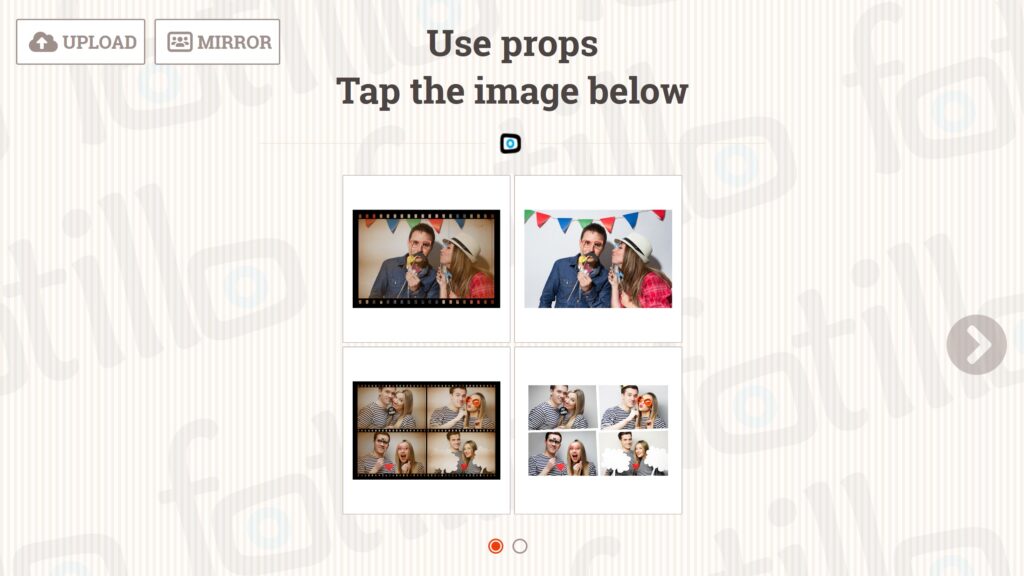


Fotillo Print Server – automatic photo printing from a phone
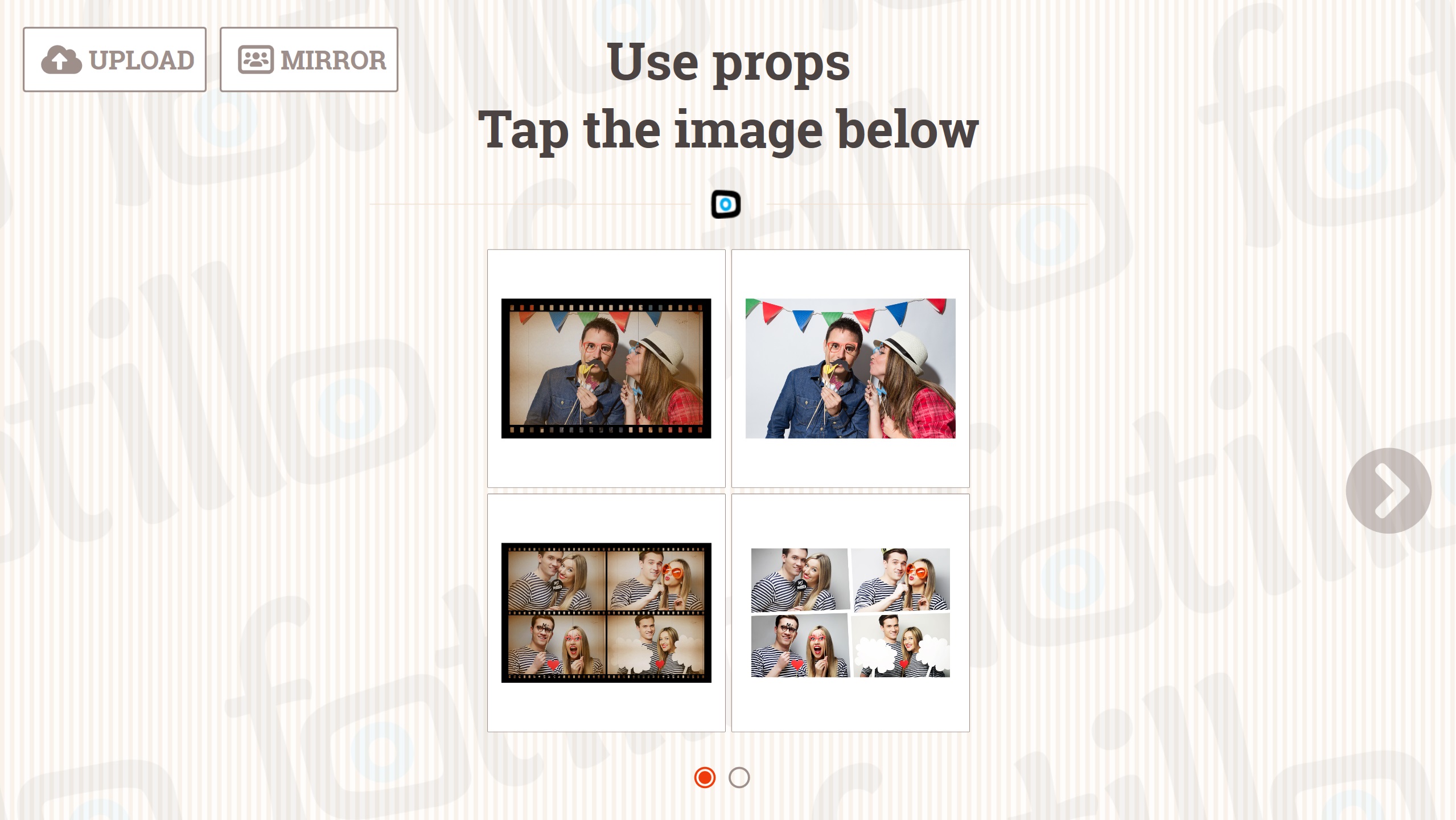
The photographer picks photos on a phone and taps PRINT, and the device builds the template and prints. At a party, guests can print from their phones with a paid package.
You shoot, and guests get prints before they leave the room
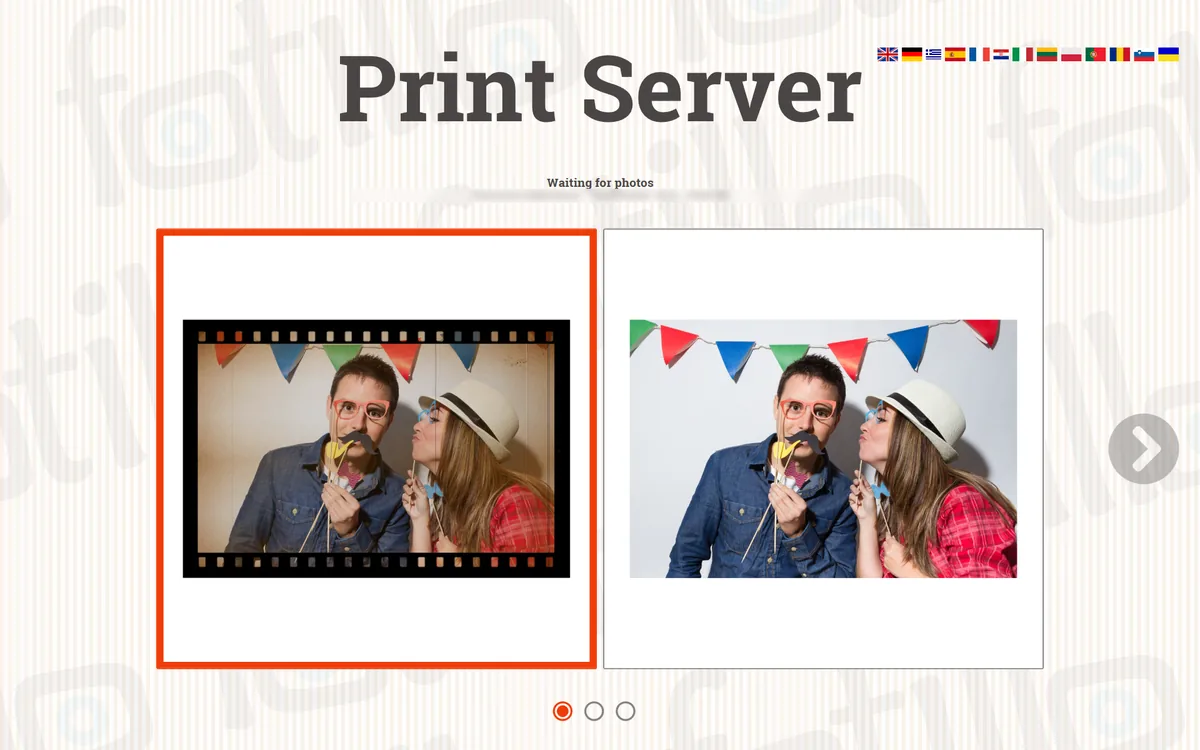
The photographer works with their own camera and picks the frames to print on a phone. The device fetches them through Fotillo Cloud, builds the template and prints. Nobody stands at the screen. A computer with Fotillo and a printer is enough.
What it does
How it differs from the other versions
Here the photographer sends photos from a phone and printing starts by itself. If photos should come from a folder on the computer, start with Fotillo Hot Folder. If guests should pick photos on screen — with Fotillo EventPrint.
Photos and the internet
Photos travel through Fotillo Cloud, so the device must be paired and online. Cloud is only a buffer and does not keep the photographer’s photos. Originals and prints are saved on the computer.
How to set it up
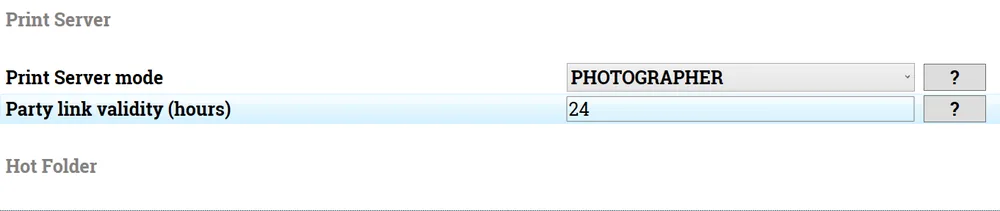
Pair the device in the F4 menu, in the Fotillo Cloud window. In the Print Server section set Print Server mode to PHOTOGRAPHER; the package already has it set. The photographer’s QR code is in the pairing window and in the operator panel. Party mode needs a terminal, package mode and the Card / BLIK payment and Promotional package / personalisation functions.
How to download the free DEMO
How to unlock the full version
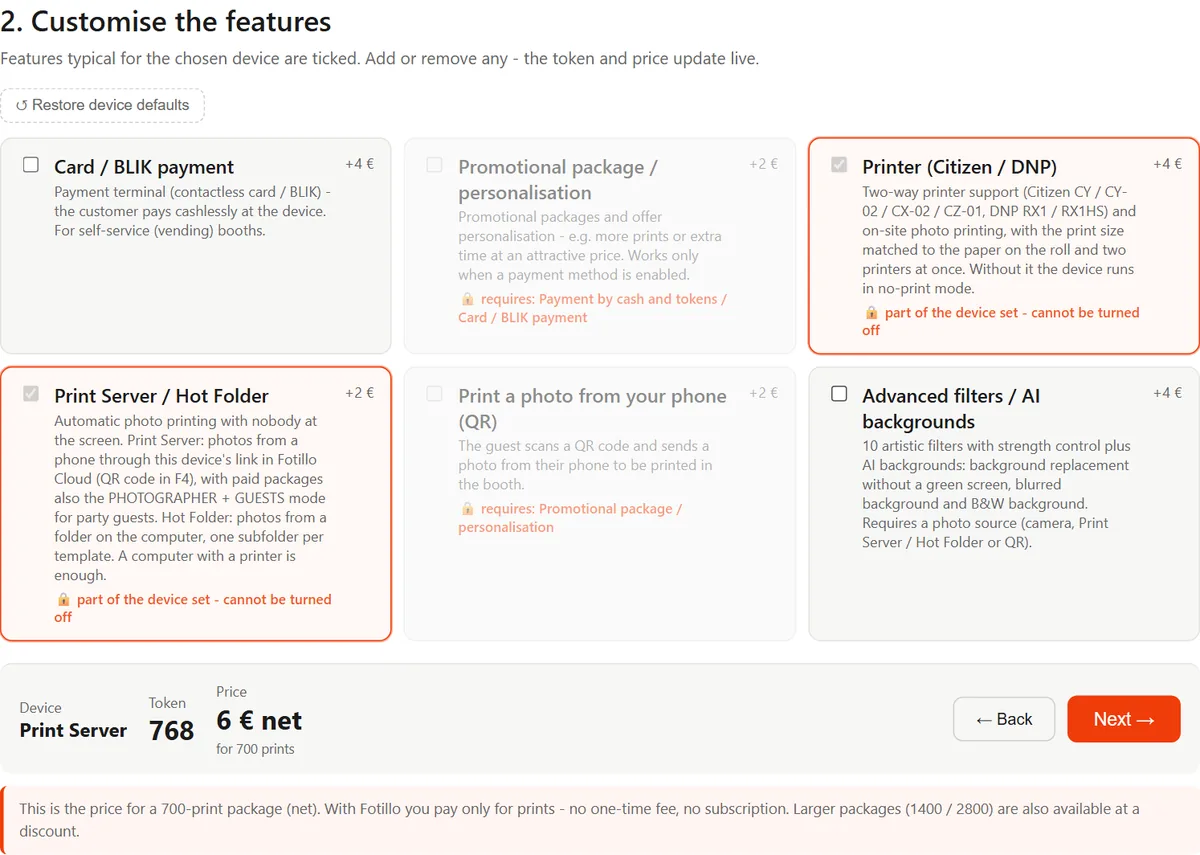
Every print and copy comes off the package, as with camera photos. You see the counter on screen, in the Cloud panel and on the photographer’s phone. You buy the activation code in the Fotillo shop, with a package of 700, 1400 or 2800 prints. The two larger packages carry a 10% and 20% discount. There is no subscription, and unused prints never expire. The configurator shows the package price as you tick the functions.
Before you buy
- The program runs on Windows 11. There is no version for Mac, iPad or Android.
- We tie the code to your computer’s number. Prints cannot be moved to another computer.
- We do not rent the program out for a single event. The smallest package lasts several events, and prints never expire.
- You secure the device with Windows settings. The manual shows how.
Templates and appearance
The photographer chooses from the templates on the device. Prepare a few layouts: a single photo, a strip, a collage. You will find more designs in the Templates section. Build your own in the browser, in Fotillo Editor: lay out the frames, add a background and captions. No graphics software needed. Designing costs nothing; a print-ready template costs from €0.76 net.